Create an "Unpaid Invoices By Client" Report
This tutorial shows you how to create a customized Unpaid Invoices report, in which you can select a single client name from a popup menu and only get that client's unpaid invoice total on the report.
Note that this report cannot be previewed during design, since it requires input.
Create the Initial Report Template
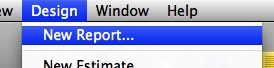
Select New Report... from the Design menu.
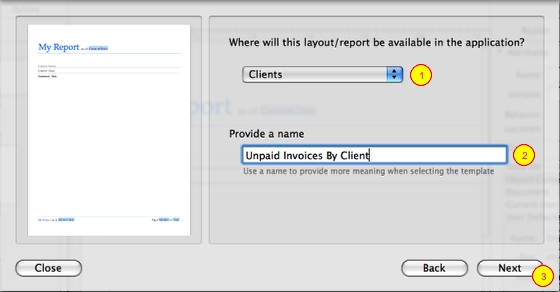
On the sheet that drops down, (1) make sure that Clients is selected in the popup menu and that (2) you enter a name for the report (I used "Unpaid Invoices By Client"), and then (3) click the Next button.
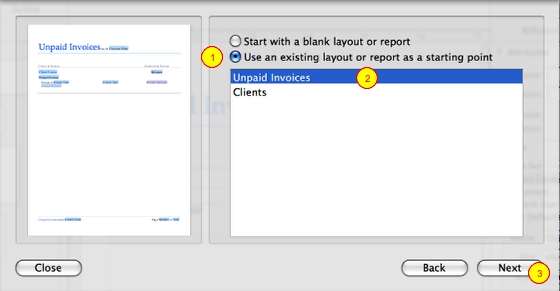
On this screen, (1) click on Use an existing layout or report as a starting point, (2) click on the Unpaid Invoices report, and (3) click Next.
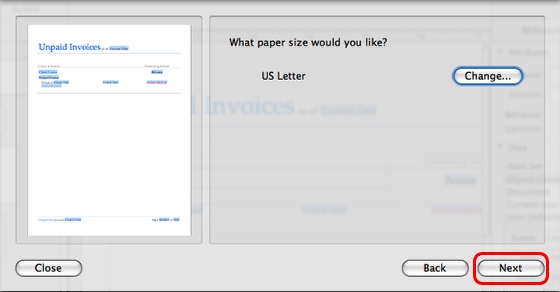
Nothing to do on this screen, but click Next. This will close the sheet and display the Report Designer window.
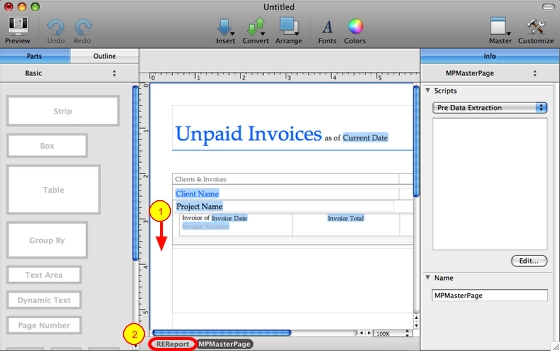
(1) Click on the outside "page" part of the layout; doing so will select the MPMasterPage item in the object "path" at the bottom of the window. (2) Click on REReport.

If all went well, you should (1) see the name REReport at the top of the Inspector area. If so, scroll the Inspector down until you see the User Input section. If it is not expanded, (2) click on the toggle to expand it.
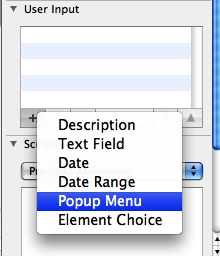
Click the [+] button, and choose Popup Menu from the list of choices.
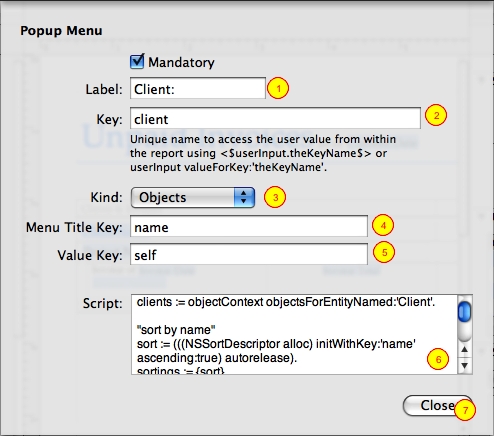
On the sheet that displays, change the screen to (1) show the label you want before the popup menu that's displayed when you run the report, (2) enter the string "client" for the Key, (3) change the Kind to Objects, (4) enter the string "name" for Menu Title Key, (5) enter the string "self" for the Value Key, and then (6) set the Script to be the following:
(7) Click the Close button to close the window and return to the layout.
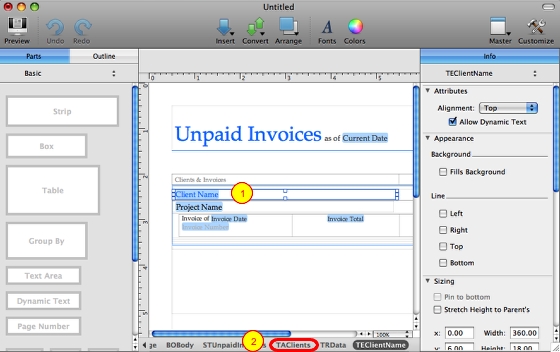
(1) Click on the "Client Name" text area in the layout. This will change the path at the bottom of the layout window with TEClientName highlighted. (2) Click on TAClients.
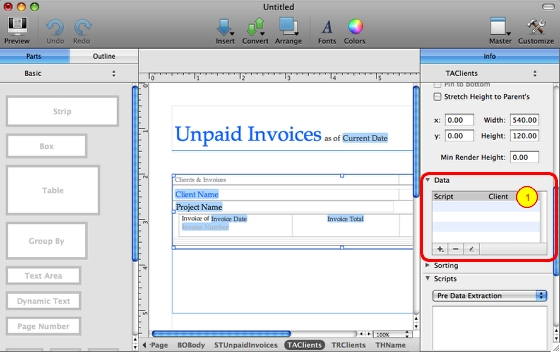
On the right side near the bottom of the inspector is an area called "Data". If it's not already toggled open, do so. (1) You'll see one item in the list: "Script Client". Double-click that to open it.
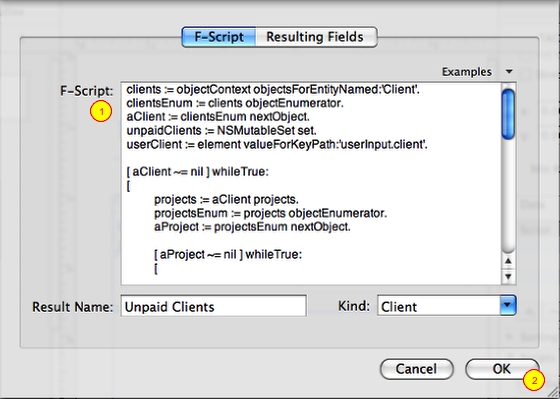
On the sheet that's displayed, (1) replace the existing code with this:
Leave the Result Name and Kind alone, and (2) click the OK button to close the window and return to the layout.
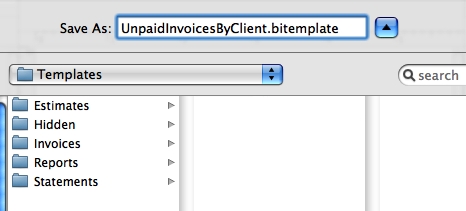
Save your report now, and give it a name, making sure to leave the .bitemplate extension. The name you give it will never appear in Billings' interface, so you can name it what you like (the actual name of the report is stored inside the .bitemplate file).
Test Your Report
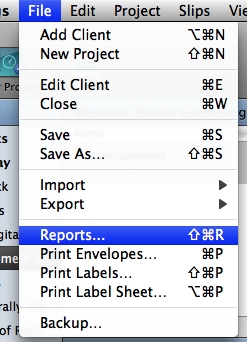
Choose Reports... from the File menu.
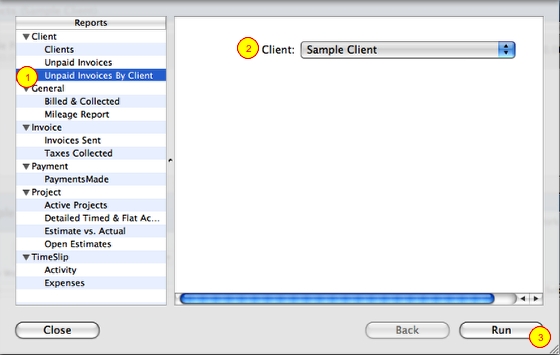
In the window that appears, (1) select your custom report in the Reports list on the left, (2) select the client you want to run the report for, and (3) click Run.
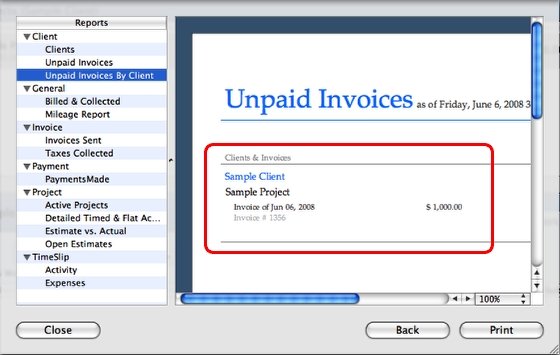
If you did everything correctly, you should see an Unpaid Invoices report, but with only one client listed, and all of the projects associated with the client that have unpaid balances.
Credits
This tutorial was created 6/6/08 by Ken Ray of Sons of Thunder Software, Inc., and was developed using the awesome ScreenSteps application by Blue Mango Learning Systems.